

Q1: The Monitor shows: “No signal”, how to solve it?
-
description
-
tech specs
-
support
-
download
-
reviews
Magedok 17.3 Inch IPS 4K 120Hz 100% DCI-P3 Touch Portable Monitor

4k Portable Touch Monitor More Details

1ms Reaction Rate

400cd/m2 Brightness


Anti Glare

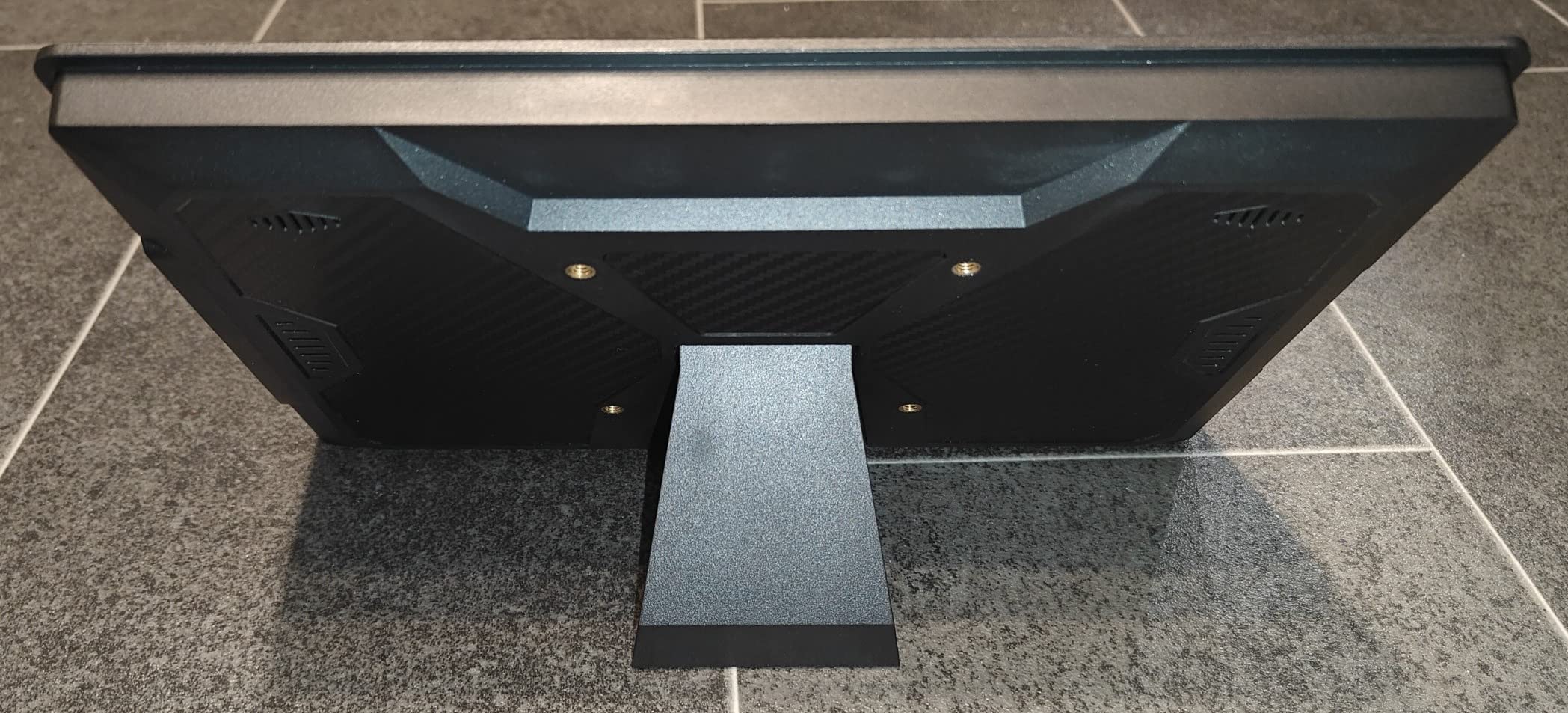
VESA Holes
Maximize Your Experience Via Some Features

4K UHD (3840 x 2160) High resolution
4K Super UHD (3840x2160) high resolution, PI3 100% color gamut, 10-bit colour depth and twice as many pixels as QHD for vivid expression.
120Hz &1Ms Instant Response
120Hz high refresh rate and 1ms response time for a smooth gaming experience. Say goodbye to flicker and splash.


Support 10-point Touch
Portable touch monitor supports ten-point touch, slide, zoom in, zoom out and other operations suitable for office or entertainment
Thin And Portable
The high-quality portable monitor made of CNC-controlled, robust, and high-quality metal combines functionality and design and ensures excellent durability.

4K Touchscreen With Stylus Support For Productivity

Balance Your Vision and Free Your Hands


30-Day Back Guarantee
Hassle-Free Warranty
Lifetime Customer Support
Let's Hear What Our Customers Say


Regina Moore
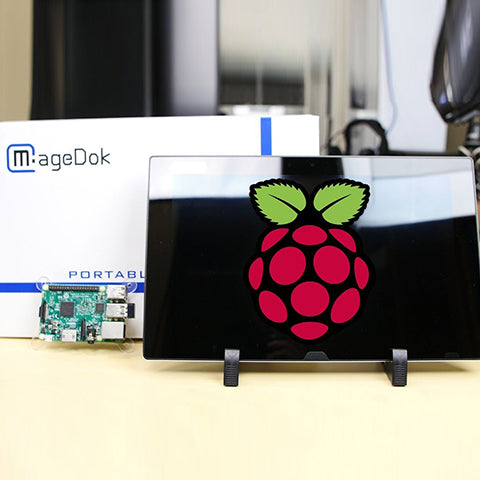
The Magedok Raspberry Pi touchscreen monitor is 10.1 inches in size and portable. The build quality is excellent, and the touchscreen responds quickly and reliably
Ned Jacobs
The small display arrives securely packaged. Included are a 12V power adapter, a USB to USB-C cable, a sufficiently long HDMI cable, and mounting screws.
Sabrina Miller
I am absolutely thrilled with the Raspberry Pi touchscreen monitor
Since I started using it three months ago, it has proven to be indispensable for my Raspberry Pi projects.
Display
Display Type: LCD
Panel Size (inch) : 17.3
Aspect Ratio: 16:9
Native Resolution :3840*2160
Contrast Ratio :1000:1
Colour Support :8Bits+2FRC
Colour Gamut :100%DCI-P3
Brightness :400Nits
Viewing Angle:178°
Screen Coating :Matte
Refresh Rate(optional):120Hz
Response Time(optional):1Ms
Adaptive Sync:Freesync
Mechanical
Dimensions & Net Weight:394*243*6mm, 1200g
Dimensions & Weight (Shipping):460*380*70mm, 2600g
Mounting Type:Desk &Wall Mount
Shell Material:Aluminium
Environmental Parameters
Operating Temperature : 0~50℃
Storage Temperature: -20~60℃
Humidity Range Operating : 0~50℃
Touch Function
Yes/NO: Yes
Touch Controller:10-point Capacitive
Compatible OS:Andriod Windows10/11,Mac OS,Linux
Power
Power Consumption (Typical): 18W
Audio
Type:Speaker
Output Power / Channel:1W*2
Other
Color:Dark grey
Connectivity:USB C 3.1 Gen2 x 1
USB C PD Power x 1
Mini HDMI (HDCP 1.4)x 1
I/O Ports:
Accessories (vary by regions):PD30W Adapter x 1, USB C-USB A Cable x 1, USB C Gen2 Cable x 1, Mini HDMI Cable x 1, Leather Cover x 1, VESA Screwsx 1, User Manual x 1
Please connect the power first, then check the HDMI cable and USB-C power cable have been firmly connected to the monitor's port. In the OSD menu, make sure the power key is open.
Q2: Power is On, why no image appears on screen?
- Make sure the video cable connecting the monitor to the computer is properly and securely connected.
- Adjust the brightness and contrast settings.
- Make sure the correct input source is selected.
Q3: Why shows wrong or abnormal colors?
- If any colors (red, green, or blue) are missing, check the video cable to make sure it is properly and securely connected. Loose or broken pins in the cable connector could cause an improper connection.
- Connect the monitor to another computer.
- Pls check if you using an older graphics card.
Q4: Why screen image is blurred?
- Adjust the resolution to the correct Aspect Ratio.
- Reset the monitor to factory settings.
Q5: The screen isn’t centered correctly
- Adjust the horizontal and vertical controls via the OSD Menu.
- Check the Aspect Ratio.
- Reset the monitor to factory settings.
Q6: The screen appears yellow
Make sure the “Blue Light Filter” is Off.
Q7: Randomly no display or go blank Or showing "Insufficient Power Warning" on the monitor, How to do it?
- Please avoid pulling the cables.
- Please connect to a PD30W adapter to ensure the power supply is enough.
- Lower the volume and the brightness. High volume and brightness may increase power consumption and cause the monitor going off.
Q8: Monitor has image,but No Sound coming out?
Please check volume settings whether Mute has been turned on or not first. Monitor's audio jack is for audio output ,not input.Users can not input the audio. When connecting a cable to the monitor's headphone jack,the Monitor will turn off the internal speakers.
Q9: Why my monitor shows Out of Range?
It means the video source inputted is not in monitor's supported video input formats, and the monitor cannot display the resolution or the frequency normally. Please check monitor's supported operating modes.
Q10: Why it is no signal when i use the usb-c to usb-c Cable in the USB C device?
- Please make sure the USB C device support the video input
- Make sure use the USB-C 3.1 Gen 2 (10 Gbps) Cable
- It need to connect the USB C power port when powered insufficiently by USB C full function port
Q11: Why my device has USB C,connect the usb c 3.1 gen 2 cable but no video?
For some Terminal equipment manufacture,the USB C not support USB C ALt mode, the hardware can’t provide the video signal.
Q12: Does it need a USB-C converter when connecting the Nintendo Switch?
No, it doesn’t need. It is plug and play. Use the original adapter, one single power cable can power both the monitor and Switch.
Subject
Release Date

Download
User Manual
2025/9/10

2D Dimension Drawing
2025/9/10
3D Files
2025/9/10
Customers Also Bought