

Q1: The Monitor shows: “No signal”, how to solve it?
-
description
-
tech specs
-
support
-
download
-
reviews
Magedok 15.6 Inch IPS USB-C Portable Touch Monitor Support MPP Stylus Pen

Touchscreen Portable Monitor More Details

19200*1080 FHD

100%sRGB


400Nits Brightness

Full-Laminated Screen
Experience Unmatched Portability with Magedok

Support 10-point touch
The 10-Point Touch Functionality Requires No Additional Driver Installation. With Its Excellent Sensitivity And Multi-Touch Capability, You Can Swipe, Scroll, Select, Zoom In, And Zoom Out Effortlessly, Delivering An Ipad-Like Touch Experience.
VESA 75×75mm Mount
Desk, arm, wall—install it your way:with a back bracket,easy install on the desktop,Built-in VESA 75×75mm mounting for monitor arms, rigs, kiosks, or rack dashboards.


Suitable for a variety of applications
Equipped with full-featured USB-C, standard HDMI and Mini DP, this USB-C portable monitor connects easily to laptops, PCs, Mini PC and game consoles.
Experience Convenience in Work and Entertainment with a Touch Monitor


30-Day Back Guarantee
Hassle-Free Warranty
Lifetime Customer Support
Let's Hear What Our Customers Say


Regina Moore
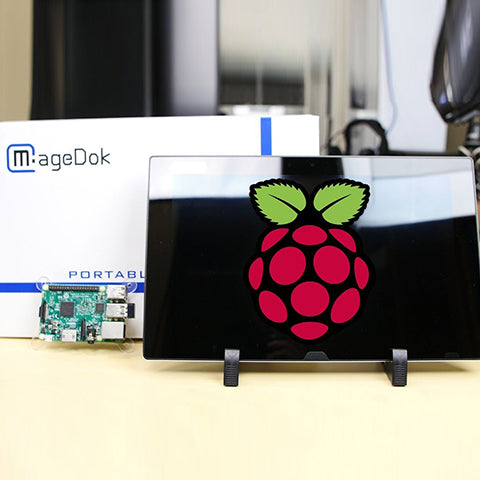
The Magedok Raspberry Pi touchscreen monitor is 10.1 inches in size and portable. The build quality is excellent, and the touchscreen responds quickly and reliably

Ned Jacobs
The small display arrives securely packaged. Included are a 12V power adapter, a USB to USB-C cable, a sufficiently long HDMI cable, and mounting screws.
Sabrina Miller
I am absolutely thrilled with the Raspberry Pi touchscreen monitor
Since I started using it three months ago, it has proven to be indispensable for my Raspberry Pi projects.
Display
Display Type:LCD
Panel Size (inch) :15.6 inch
Aspect Ratio:16:9
Native Resolution :1920(RGB)×1080
Contrast Ratio :1300:1( Typ.)
Color Support :16.7M
Color Gamut :72% NTSC
Brightness :400 Nits
Viewing Angle:170 Degrees
Screen Coating :Glossy
Refresh Rate(optional):60Hz
Response Time(optional):20Ms
Adaptive Sync:Yes
Mechanical
Dimensions & Net Weight:
359.2*233.8*6.5(12)mm, 1000g
Dimensions & Weight (Shipping):
382*273*60mm, 1600g
Mounting Type:Desk&VESA Mount
Shell Material:Aluminum
Environmental Parameters
Min Operating Temperature : 0°C
Max Operating Temperature: 50°C
Storage Temperature: -20-60°C
Touch Function
Yes/NO:Yes
Touch Controller:
Compatible OS:Andriod Windows10/11,Mac OS,Linux
Power
Power Consumption (Typical) 8W
Audio
Type:Speakers/3.5 Headphones
Output Power / Channel:1W*2
Other
Color:Sliver
Connectivity:USB C(Full Function) x 1
USB C PD Power x 1, HDMI (HDCP 2.0)x 1,Mini DisplayPort 1.2x 1
I/O Ports: 3.5mm Audio Jack x 1
Accessories (vary by regions): Power Adapter x 1, USB C 3.1 Gen2 Cable x 1, USB C-USB A Cable x 1, Standard HDMI Cable x 1, MPP1.5 Stylus x 1, VESA Screws x 1, User Manual x 1
Please connect the power first, then check the HDMI cable and USB-C power cable have been firmly connected to the monitor's port. In the OSD menu, make sure the power key is open.
Q2: Power is On, why no image appears on screen?
- Make sure the video cable connecting the monitor to the computer is properly and securely connected.
- Adjust the brightness and contrast settings.
- Make sure the correct input source is selected.
Q3: Why shows wrong or abnormal colors?
- If any colors (red, green, or blue) are missing, check the video cable to make sure it is properly and securely connected. Loose or broken pins in the cable connector could cause an improper connection.
- Connect the monitor to another computer.
- Pls check if you using an older graphics card.
Q4: Why screen image is blurred?
- Adjust the resolution to the correct Aspect Ratio.
- Reset the monitor to factory settings.
Q5: The screen isn’t centered correctly
- Adjust the horizontal and vertical controls via the OSD Menu.
- Check the Aspect Ratio.
- Reset the monitor to factory settings.
Q6: The screen appears yellow
Make sure the “Blue Light Filter” is Off.
Q7: Randomly no display or go blank Or showing "Insufficient Power Warning" on the monitor, How to do it?
- Please avoid pulling the cables.
- Please connect to a PD30W adapter to ensure the power supply is enough.
- Lower the volume and the brightness. High volume and brightness may increase power consumption and cause the monitor going off.
Q8: Monitor has image,but No Sound coming out?
Please check volume settings whether Mute has been turned on or not first. Monitor's audio jack is for audio output ,not input.Users can not input the audio. When connecting a cable to the monitor's headphone jack,the Monitor will turn off the internal speakers.
Q9: Why my monitor shows Out of Range?
It means the video source inputted is not in monitor's supported video input formats, and the monitor cannot display the resolution or the frequency normally. Please check monitor's supported operating modes.
Q10: Why it is no signal when i use the usb-c to usb-c Cable in the USB C device?
- Please make sure the USB C device support the video input
- Make sure use the USB-C 3.1 Gen 2 (10 Gbps) Cable
- It need to connect the USB C power port when powered insufficiently by USB C full function port
Q11: Why my device has USB C,connect the usb c 3.1 gen 2 cable but no video?
For some Terminal equipment manufacture,the USB C not support USB C ALt mode, the hardware can’t provide the video signal.
Q12: Does it need a USB-C converter when connecting the Nintendo Switch?
No, it doesn’t need. It is plug and play. Use the original adapter, one single power cable can power both the monitor and Switch.
Subject
Release Date

Download
User Manual
2025/9/10

2D Dimension Drawing
2025/9/10
Customers Also Bought